User Management
User management enables administrators to add and remove users from an organization using their email address.
Used alongside the Allow anonymous guest access security setting, user management can enable Organization's to allow granular access.
Add a user
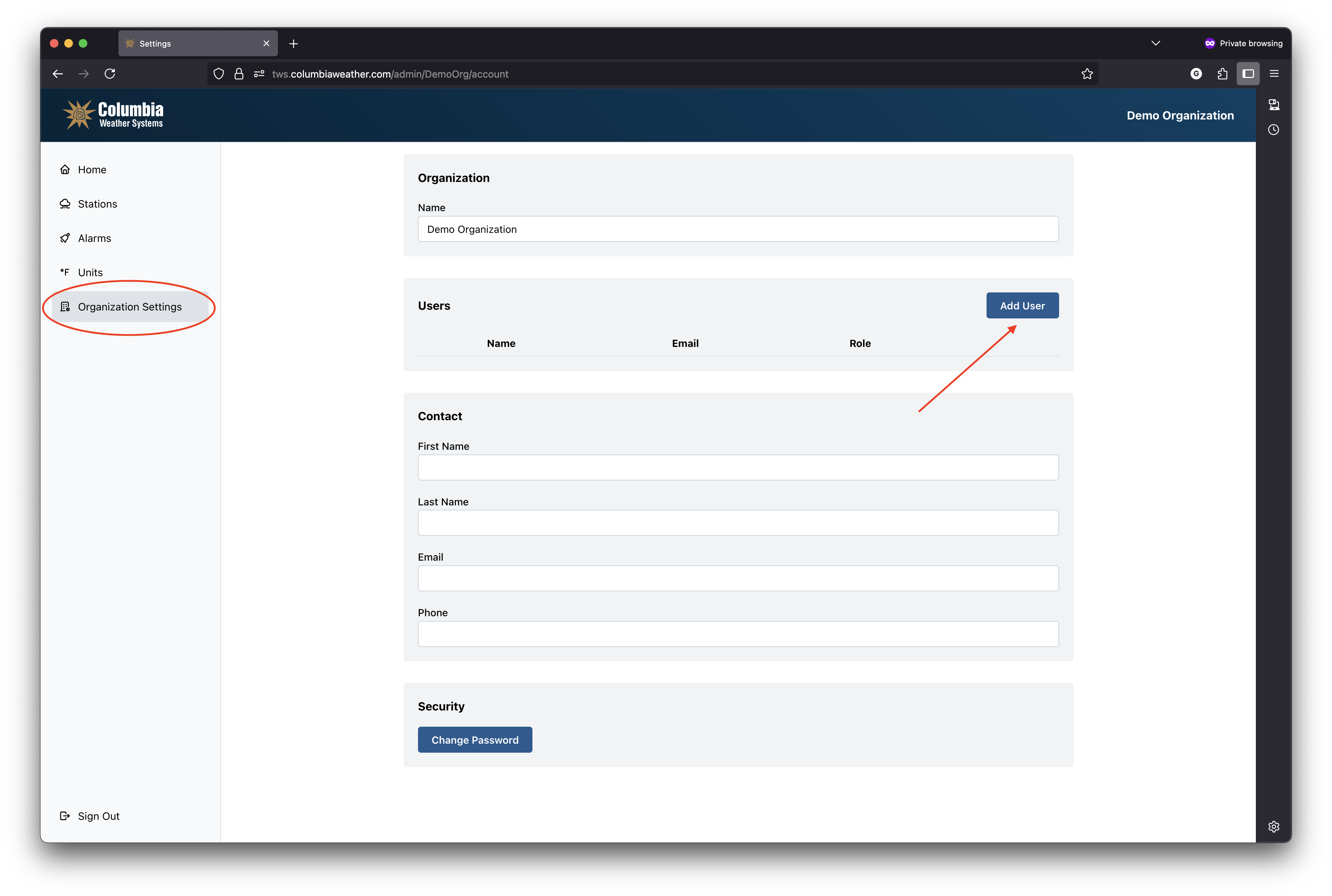
To add a user to your Organization, navigate to the "Settings" page.
On the settings page, you will see a table called "Users". A button "Add User" will be visible on the right side of the table.
Click this button, then enter the new user's email address, and role. User roles are described further below.
After adding the user, the user will receive an invitation email with log-in instructions and a temporary password. Upon their first login, they will be prompted to enter their name and create a new password.
Remove a user
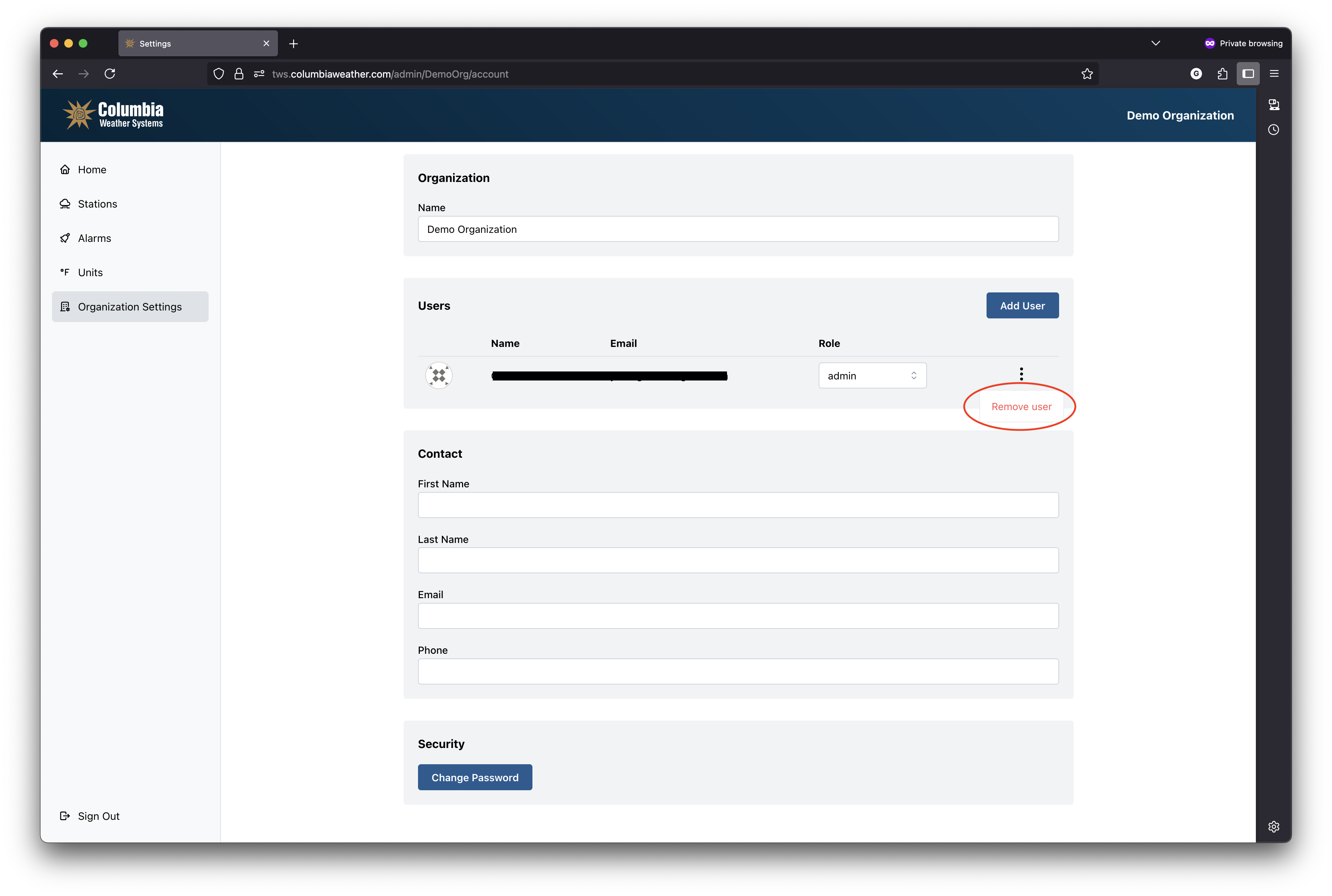
To remove a user from your organization, select the 3 vertical dots at the end of a user role, then click "Remove user".
Roles
Each user must be assigned a role when they are added: "guest" or "admin". The user's role defines the permissions for a user; determining what actions they are able to perform.
Guest
The guest role's permissions are readonly. They are only able to view stations, weather data, and active alarms. With 'Allow anonymous guest access' enabled, you may not need to add a guest user.
Admin
Admins have full administrative permissions, including adding/removing stations, alarms, users, and changing Organization settings.